Save an encounter
Name an encounter and save it, then open, edit, duplicate or delete it later.
Saving keeps an encounter in your account so you can come back to it, change it and take it to the table.
Before you start: you need to be signed in. Select Sign in with Patreon; an account is free. You also need an encounter in the builder (see Generate an encounter).
Save it
-
On the Encounters page, look above your encounter's monster list.
-
Type a name in the Encounter name box, for example "Goblin ambush on the north road".
-
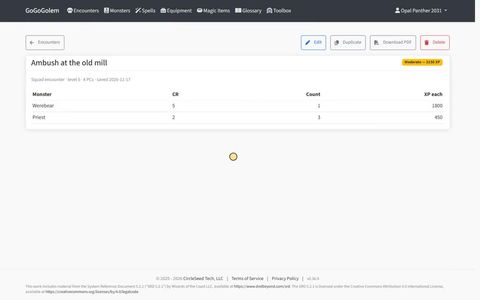
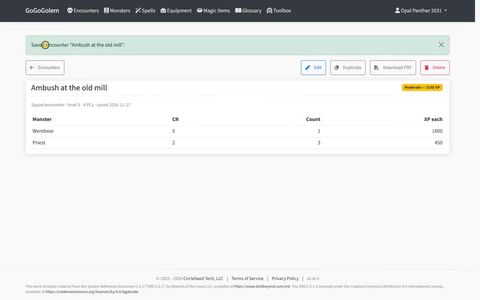
Select Save. The encounter's own page opens with a "Saved encounter" message at the top.
It is also listed under Saved Encounters at the bottom of the Encounters page, with its type, party level, party size and total XP. Select View All to see every encounter you have saved.
Open, change and reuse it
-
Select the encounter's name in Saved Encounters to open it.
-
From there:
- Edit loads it back into the Encounter Builder. A banner says which encounter you are editing. Make your changes and select Save changes, or select Stop editing to leave it as it was.
- Duplicate makes a copy, so you can try a variation and keep the original.
- Download PDF gives you the stat blocks of every monster in the encounter, ready to print or read on a phone. It shows if your membership includes PDF export.
- Delete removes it. You are asked to confirm first, and it can't be undone.